Before You Start
- SMS must be active for your team.
- You need owner or admin access to submit registration details.
- Use accurate legal business information. Carriers review the submission before your team can send from a registered number.
Set Up SMS
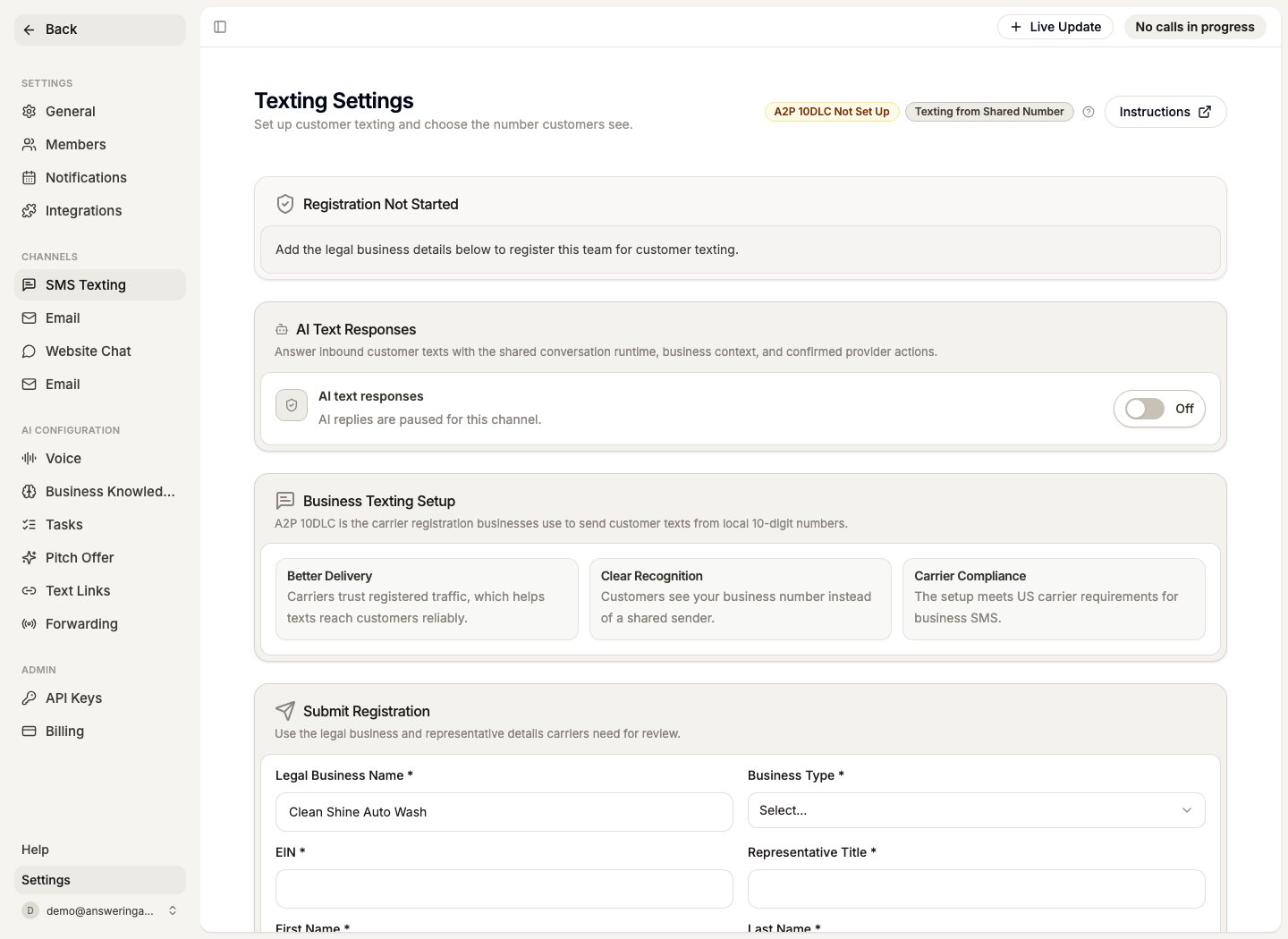
- Open Dashboard > Team Settings > Texting Settings.
- If SMS is not active, choose Activate Add-On and complete the billing flow.
- Fill out the A2P 10DLC registration form with your legal business name, registration number, contact details, and business address.
- Submit the registration for carrier review.
- After approval, choose the default sender number customers will see.
- Turn on AI Text Responses when your team is ready for automated replies.
AI text responses are controlled by the AI Text Responses toggle. The setting can be enabled for the team and overridden at the phone-number level when a specific location needs different behavior.
AI Text Responses
When AI text responses are enabled, Answering Agent can automatically reply to new inbound customer texts. The AI uses the same context as your phone agent:- Business knowledge and location settings
- Team and phone-number AI instructions
- Safe customer-action rules available to the written-message channel
- Prior messages in the same SMS conversation
When The AI Replies
The AI replies when a customer starts or continues an AI-owned SMS conversation and AI text responses are enabled for that number.When The AI Does Not Reply
The AI does not reply when the thread is already human-owned. For example, if your team sends a dashboard SMS and the customer replies, Answering Agent stores the reply in the dashboard but does not send an automatic AI response. The AI also pauses for active task threads, opt-outs, human handoff, spam, and conversations that have already started extraction.Conversation Extraction
SMS conversations are extracted after 30 minutes of inactivity. Answering Agent then creates dashboard tasks, questions, and follow-up context from the thread, similar to phone calls and website chat. The extraction job runs every 5 minutes, so tasks usually appear shortly after the 30-minute quiet window has passed. Texts that clearly need a person, such as a request to be called, a claim that a charge was never authorized, or a chargeback or legal threat, wait only 10 minutes instead. If someone on your team replies first, the normal 30-minute window applies.What Happens Next
While registration is pending, the settings page shows the review status and locks submitted details. When SMS conversations arrive, they appear under Dashboard > Conversations with the SMS filter applied. If your inbox already has SMS conversations, the conversation list becomes the primary screen. Use Setup & Instructions from the filtered inbox when you need to revisit the setup page.Troubleshooting
Registration Was Rejected
Open Texting Settings, review the carrier note, correct the highlighted business information, and resubmit.Customers Still See A Shared Number
Confirm A2P 10DLC is approved and that messaging is enabled for the team. Then choose the registered number as the default sender.SMS Does Not Appear In Conversations
Check that SMS is active, the sender is approved, and the customer has replied to one of your team numbers.Learn More
AI Conversations
See how the same AI conversation engine works across phone, website chat, SMS, and email — including when the AI replies, when it steps back, and how conversations become dashboard tasks.