The chat widget provides your visitors with cutting-edge multimodal AI assistance - they can type, speak, or even share images, all in one seamless conversation.
Quick Start
Open Dashboard > Team Settings > Website Chat to customize the greeting, quick replies, and install snippet.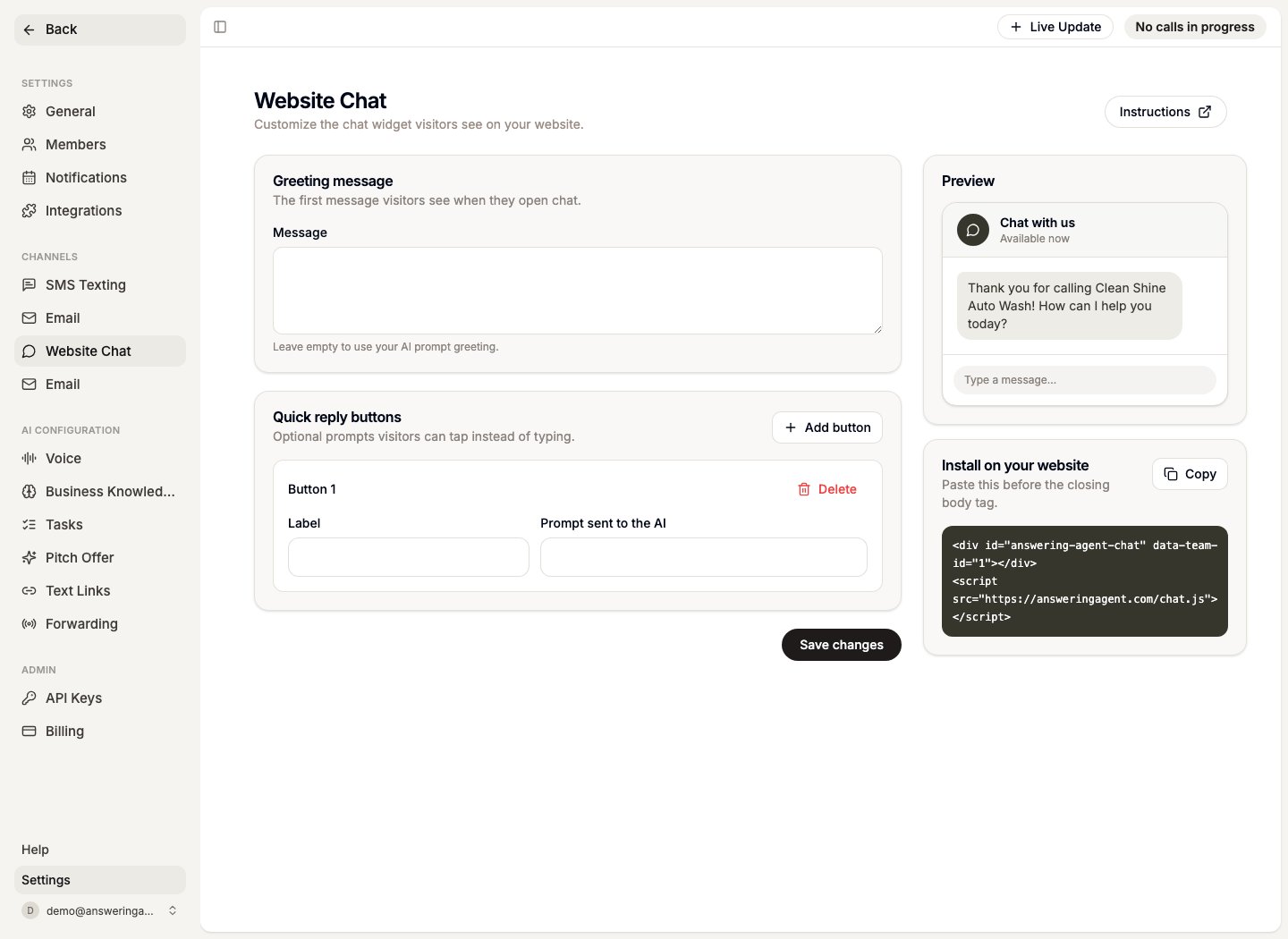
YOUR_TEAM_ID with your team ID from the Answering Agent dashboard.
The chat.js loader loads /embed.css automatically, so you do not need to add a separate stylesheet tag.
Existing snippets that load https://answeringagent.com/widget.js remain supported. New installs should use chat.js.
Dashboard Setup
- Open Dashboard > Team Settings > Website Chat.
- If Website Chat is not active, choose Activate Add-On and complete the billing flow.
- Review the greeting and quick replies customers will see.
- Copy the
chat.jssnippet. - Paste the snippet into your website before the closing
</body>tag, or use your site builder’s custom code area. - Send a test message from the website and confirm the conversation appears in Dashboard > Conversations with the Website Chat filter applied.
Features
Multimodal Conversations
Users can type, speak, and share images - all in the same conversation
Real-Time Voice
Natural, interruption-aware voice conversations with ultra-low latency
Visual Understanding
AI can see and understand images shared during the conversation
Seamless Mode Switching
Switch between text and voice mid-conversation without losing context
Why Multimodal Matters
Traditional chatbots force users into a single mode of communication. Our multimodal AI adapts to how your users want to interact:- Shopping: “Show me shoes like these” [uploads photo] → AI analyzes the image and suggests similar products
- Support: Start typing a question, then switch to voice to explain a complex issue
- Accessibility: Users can choose their preferred communication method based on their needs or situation
- Natural Flow: Just like human conversation, users can point, show, speak, or type as needed
Installation
Basic Installation
Add the chat widget to your website:Site Builder Installation
If your website builder only lets you add a script tag, add the team ID directly to thechat.js script:
With Customization
Configuration
Required Configuration
The only required configuration is your team ID:Customization Options
You can customize the widget’s appearance using data attributes on the container div:Widget Size
Control the widget size:data-variant- Widget size ("tiny","compact","full")
Visual Customization
Control the widget’s visual appearance:data-avatar-image-url- Custom avatar image URLdata-avatar-orb-color-1- Primary orb gradient color (hex)data-avatar-orb-color-2- Secondary orb gradient color (hex)
Complete Example
Here’s a fully customized widget:How It Works
- Widget Initialization: The widget fetches your team’s AI agent configuration and prompts
- Conversation Start: When a visitor starts chatting, Answering Agent creates a dashboard conversation for that website session
- AI Processing: Messages are processed using your team’s custom AI agent, business knowledge, and eligible integrations
- Data Persistence: The conversation is saved to your dashboard and extracted after the thread goes quiet
AI Capabilities
The chat widget uses the same AI agent as your phone system, so it can:- Answer business questions using your custom knowledge base
- Book appointments through your integrated scheduling system
- Access customer data from your CRM integrations
- Create tasks and follow-ups in your connected systems
- Provide quotes and pricing information
Conversation Extraction
Website chat conversations are extracted after 3 minutes of inactivity. Answering Agent then creates dashboard tasks, unanswered questions, handoff details, and follow-up context from the thread. The extraction job runs every 5 minutes, so tasks usually appear shortly after the quiet window has passed. For a full overview of how the same AI conversation engine works across phone, website chat, SMS, and email, see AI Conversations.Data & Privacy
- Anonymous Conversations: Chat conversations don’t require visitor registration
- Conversation History: All conversations are saved and accessible in your dashboard
- Secure Integration: The widget uses secure public endpoints - no API keys are exposed
- Team Isolation: Each team’s widget is completely isolated and secure
Multimodal Use Cases
Customer Support
- Users can screenshot error messages and share them directly
- Switch to voice when typing becomes cumbersome
- AI can guide users visually: “Click the button that looks like this…”
E-commerce
- “Find me a dress like this one” with photo upload
- Voice shopping: “I need a gift for my mother’s birthday”
- Visual product search and comparison
Real Estate
- Share property photos for instant analysis
- Voice tours: “Tell me more about the kitchen”
- Mixed mode inquiries combining photos and questions
Healthcare
- Share symptoms visually when relevant
- Voice for sensitive discussions
- Text for precise medical history
Troubleshooting
Which Installation Method Should I Use?
Widget Not Appearing
- Check team ID: Ensure you’ve replaced
YOUR_TEAM_IDwith your actual team ID from the dashboard - Check container: Verify the
<div id="answering-agent-chat">element exists in your HTML, or use the site builder installation withdata-team-idon the script tag - Check console: Look for error messages in the browser console (press F12)
- Check addon status: Ensure the chat widget addon is enabled for your account
- Check setup status: Ensure Website Chat is active in Team Settings and the team has an active phone number for conversation ownership
- Contact support for CSP issues: If your site blocks the script with Content Security Policy errors, contact support so we can help configure an approved installation
Error Messages
If you see error messages in the bottom-right corner of your page:- “Chat widget addon is not enabled”: Contact support to enable the chat widget addon
- “Chat widget is not configured”: Website Chat setup needs to be completed in Team Settings
- “No active phone number found”: Add an active phone number to your team
Conversation Not Saving
- Verify your team has an active phone number configured
- Check that the phone number status is ‘active’ in your dashboard
- Ensure the chat widget addon is enabled for your account